

If you’ve ever been locked out of your mailbox because Outlook won’t open your OST file, you know how frustrating it can be. Your emails, contacts, and calendar items are all sitting right there — visible in file size, but completely inaccessible. This is one of the most common pain points reported by IT admins, mailbox migration teams, and everyday Outlook users alike.
In this guide, we’ll break down exactly why OST files become inaccessible, and walk through practical, reliable ways to convert OST to PST — including options that don’t require Outlook to be installed at all.
Why Do You Need to Convert OST to PST in the First Place?
An OST (Offline Storage Table) file is a cached copy of your Exchange or Microsoft 365 mailbox, stored locally so you can work offline. Unlike a PST (Personal Storage Table) file, an OST is tightly bound to the Exchange profile that created it — which means it can’t simply be opened on another machine, imported into a new Outlook profile, or used independently.
Common scenarios that trigger the need for OST to PST conversion include:
- Exchange server crash or decommission — the OST becomes orphaned with no server to sync back to
- Mailbox corruption — Outlook throws errors like “OST file cannot be accessed” or “0x8004010F”
- Employee offboarding — IT teams need to preserve mailbox data after an account is deleted
- Migration projects — moving from on-premises Exchange to Microsoft 365, or between tenants
- Accidental deletion of the Exchange/Outlook profile, leaving the OST as the only surviving data
In each case, the practical fix is the same: convert the orphaned OST into a portable, universally readable PST file.
The Problem With Traditional Methods
Most guides suggest exporting via Outlook’s built-in Import/Export wizard. That works fine — if Outlook is installed, properly configured, and can actually connect to the mailbox the OST belongs to. But that’s often not the case. If:
- Outlook isn’t installed on the machine you’re working from,
- the Exchange account is no longer active,
- the OST file is corrupted or orphaned,
- or you simply don’t have admin access to reconfigure a mail profile,
…then Outlook-dependent methods are a dead end. This is exactly why so many users search for a way to convert OST to PST without Outlook.
Methods to Convert OST File to PST Without Outlook:
Below are the reliable methods to convert an OST file to PST without Outlook. Choose a method based on your OST file condition, and the amount of mailbox data you need to convert.
Method 1: Use a Cloud-Based OST to PST Converter
The most efficient and Outlook-independent solution is a cloud-based, automated OST to PST converter like Stellar Online OST Converter. It’s a browser-based tool that lets you upload an OST file directly and get back a fully usable PST file — no Outlook installation, no Exchange connectivity, and no manual configuration involved.
Why this method stands out:
- No Outlook or Exchange required– the tool reads and processes the OST file structure independently, even if your Exchange Server is offline, decommissioned, or permanently unreachable
- Browser-based, cross-platform access– works on Chrome, Firefox, Edge, and Safari, across desktop and mobile, with nothing to install
- Handles orphaned and corrupted OST files– built to recover mailbox data even after a profile reset, sync failure, or server crash
- Preserves data integrity– emails, attachments, contacts, calendar entries, tasks, notes, and journal entries are retained, along with the original folder hierarchy
- Preview before download– for files up to 500 MB, you can preview the converted folder structure and item count in-browser before saving, so you can verify the data first
- Fast turnaround– most conversions complete within 15 minutes, depending on file size and connection speed
- Privacy-focused processing– uploads are SSL-encrypted, run through a fully automated pipeline with no human access, and files are auto-deleted from the server after 24–48 hours
Pricing at a glance:
| Plan | File Size Limit | Cost | Notes |
| Free | Up to 500 MB | $0 | 1 file per session, download available for 24 hours |
| Premium | Up to 5 GB | $29.99 / file | Best for standard business mailboxes |
| Desktop (Corporate Edition) | No size limit | $79 | Converts up to 5 files, saved locally with no expiry |
This tiered structure makes it practical for both individuals with a single mailbox to recover and B2B IT teams handling larger or multiple mailbox conversions — free for quick, small-file jobs, with a scalable paid tier for bigger or bulk needs.
How it works, in 3 steps:
- Upload your OST file securely from your browser
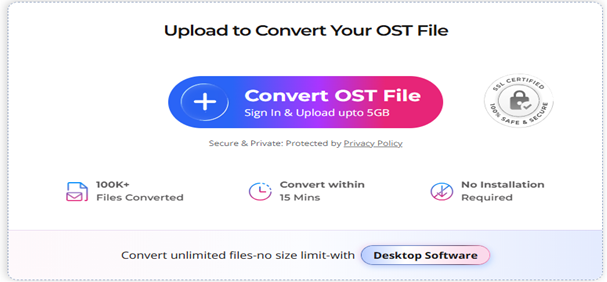
2. Let the tool convert OST format into PST automatically
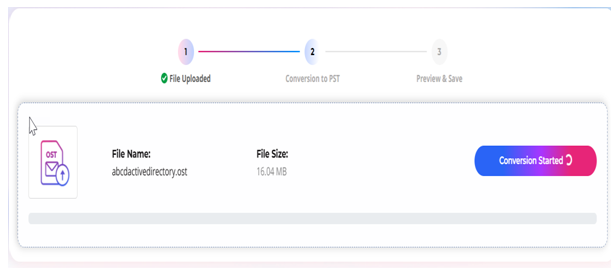
3. Preview and download the converted PST file to your system
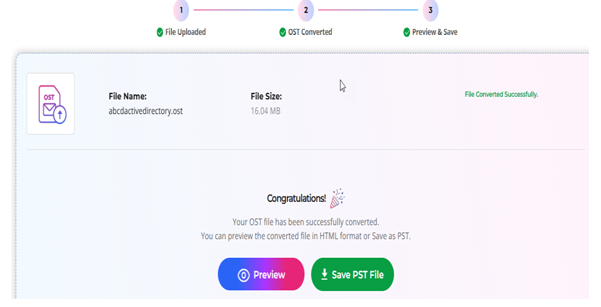
For OST files over 5 GB or bulk batch conversions, a Desktop Edition with no file size restrictions is also available — useful for organizations migrating multiple mailboxes at once without uploading data externally.
Method 2: Use a Standalone Desktop OST to PST Converter Tool
If you prefer not to upload data externally (common for organizations with strict data residency or compliance requirements), a standalone desktop ost to pst converter tool is a good alternative. These applications read the OST file locally and convert it to PST without needing Outlook or an Exchange connection.
Look for a tool that offers:
- Preview of mailbox contents before conversion
- Selective export (specific folders, date ranges, or item types)
- Support for both healthy and corrupted OST files
- Compatibility with the PST format used by your target Outlook version
- Password-protected OST files supported – password protection doesn’t block the conversion process
This method keeps data entirely on your own machine, which some compliance teams prefer over cloud uploads.
Method 3: Recreate the Exchange Profile (Only If Outlook Is Available)
If you do have access to Outlook and can reconnect the mailbox to Exchange or Microsoft 365, you can technically let Outlook resync and then use File > Open & Export > Import/Export to create a PST. However, this only works when:
- The original Exchange account is still active
- You have the correct login credentials
- The OST isn’t corrupted beyond Outlook’s built-in repair tools (ScanPST.exe)
This method is more time-consuming and doesn’t help at all with orphaned or corrupted OST files — which is why it’s listed here as a fallback, not a primary recommendation.
Which Method Should You Choose?
| Scenario | Best Method |
| No Outlook installed / no Exchange access | Cloud-based online converter (e.g., Stellar Online OST Converter) |
| Corrupted or orphaned OST file | Cloud-based converter or desktop tool with repair |
| Compliance restrictions on cloud uploads | Standalone desktop tool |
| Outlook and Exchange still accessible | Recreate profile via Outlook |
| Large mailbox (>5 GB) or bulk conversions for multiple users | Desktop Edition with batch conversion |
Final Thoughts
Losing access to your Outlook mailbox doesn’t mean losing your data. Whether you’re an individual dealing with a corrupted OST file or an IT admin migrating dozens of mailboxes, there’s a method suited to your situation. For most people, a cloud-based automated OST to PST converter offers the fastest, most accessible, and most reliable path — no Outlook installation, no Exchange dependency, and no technical headaches.
Before choosing a tool, make sure it supports the file sizes you need, preserves folder structure and metadata, and follows secure data-handling practices — especially if you’re converting sensitive business mailboxes.
More Stories
Promo Code Hellcase: Unlock Bonuses Instantly
The Evolution of Mobile App UI: Why 2026 Apps Feel “Invisible”
Comparing 6 Biological Resource Providers for Cell Culture Research