
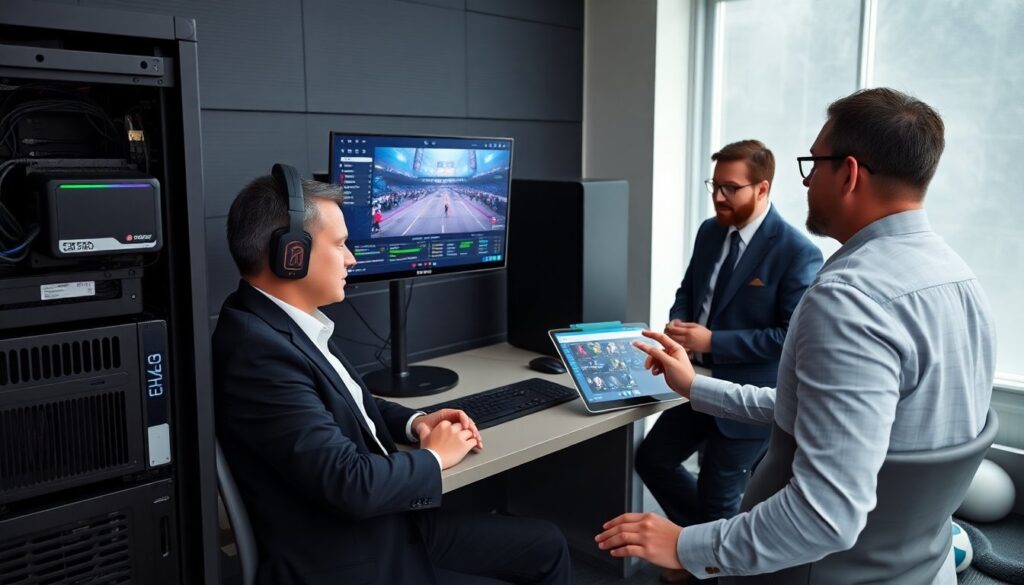
Aeonscope esports scope appears as a high-end tool for teams and streamers. It offers frame-level capture, low-latency overlays, and hardware sync. The guide explains who benefits from the device and how to set it up for tournaments. It lists core specs and real-game performance. It gives clear steps for tuning settings and fixing common faults so teams can play with stable gear and reliable data.
Key Takeaways
- The Aeonscope esports scope is a professional-grade capture and analysis device designed to support competitive gaming teams, streamers, and tournament organizers with frame-accurate video and synced telemetry.
- It records gameplay at up to 240 fps in 1080p and 120 fps in 4K with minimal latency, making it ideal for precise performance review and live broadcast overlays.
- Proper setup involves placing the scope between the source and display with short HDMI cables, powering devices in order, and updating firmware to ensure reliable frame-lock and low latency.
- Calibration for HDR content and using high-speed enterprise NVMe drives help avoid dropped frames and color issues during long capture sessions.
- Operator training, routine maintenance, and having spare hardware on hand enable smooth event operations and quick troubleshooting in competitive environments.
What Is Aeonscope Esports Scope And Who Should Use It?
Aeonscope esports scope is a capture and analysis unit built for competitive gaming. It records video at high frame rates and feeds telemetry to analysis tools. Teams use it to review aim, movement, and map control. Streamers use it to layer low-latency overlays and keep broadcast sync. Tournament organizers use it to verify runbacks and replays.
The device sits between the console or PC and the display. It samples game frames and timecodes. That process yields precise, frame-locked video for postmatch review. The unit also tags events when linked to game-state APIs. Coaches use those tags to sort clips and find errors faster.
Players who practice solo also gain value. The scope gives exact timing for inputs and outputs. A player can test crosshair placement and shot timing against recorded data. Analysts can compare sessions across days and measure improvement.
Aeonscope esports scope fits mid-to-high budgets. It aims at serious teams, content creators who need pro-grade capture, and event operators who require reliable replays. Casual players will find the device overkill unless they plan pro coaching or event work. The company sells firmware updates and service plans for teams that need uptime.
Core Features, Technical Specs, And Real-World Performance
The core feature set centers on frame-accurate capture and synced telemetry. The scope records up to 240 fps at 1080p and 120 fps at 4K. It supports HDR passthrough and reports input timing with sub-millisecond resolution. The unit offers HDMI 2.1 input and output and a USB-C stream port. It includes a local SSD slot and network export over SFTP.
On the software side, the scope ships with a desktop app that tags play events and exports clips. The app can run on Windows and Linux. It exposes an API for third-party analysis tools. The device supports live overlays for stream production and can insert score and roster data in real time.
In lab tests, the device adds under 1 ms of display latency in passthrough mode. In live tournaments, operators report consistent frame-lock and reliable replay recall. Streamers note a clear improvement in sync between game audio and overlay events. Coaches report faster clip creation and less manual trimming.
Limitations appear in certain setups. HDR workflows can require color calibration after capture. Some capture cards on older PCs conflict with the scope drivers. The company issues firmware patches monthly and posts known-device lists to help buyers avoid conflicts.
The scope runs hot under heavy load and benefits from rack mounting and active airflow in event settings. The SSD write speed matters for long LAN sessions and for export speed. Teams that plan long capture runs should use enterprise NVMe drives to avoid dropped frames.
Price sits above basic capture cards but below full broadcast switchers. Buyers get hardware reliability, pro features, and vendor support targeted to esports. The device competes with high-end capture and replay units, but it differentiates by pairing capture with event-focused tagging and an open API for analysis.
Setup, Optimization, And Troubleshooting Tips For Competitive Play
Place the Aeonscope esports scope close to the source device and the display. Keep HDMI runs short to limit signal loss. Connect the input from the PC or console to the scope first, then route the scope output to the monitor. Attach the USB-C stream port to the production PC for live capture.
Power on devices in a consistent order. Power the scope first, then the source, then the display. That order helps the scope lock to the source timing. Update the firmware and the desktop app before event start. Load predefined profiles for the game and resolution.
Use the scope’s passthrough mode for the players to avoid added display latency. Enable local recording on the SSD for postmatch review. Set the capture bitrate to balance file size and clarity. For 1080p240, a bitrate near 60–80 Mbps gives clear frames without huge files. For 4K120, raise bitrate to 150–200 Mbps and use enterprise NVMe.
Calibrate color if using HDR. Capture a test clip and compare it to the live feed. Adjust color space and gamma in the app until the recorded file matches the monitor. Lock the scope to a single frame rate to avoid dropped frames during scene changes.
If clips show dropped frames, check SSD write speed and cabling. Replace any USB or HDMI cable that fails a burn test. If drivers conflict on the production PC, disable other capture devices in device manager and reboot. Use the scope’s diagnostic log to find driver errors and send the log to vendor support.
For overlay sync issues, verify the API timestamp alignment. Make sure the game-state feed runs on the same network segment as the scope or use a direct feed. If overlays lag, increase the buffer slightly in the app and retest. For tournament setups, run a full mock match two hours before play and check replays, overlays, and export workflows.
Train a single operator to handle the scope during events. One person can manage recording, clip tagging, and export. That practice reduces mistakes and speeds match reviews. Keep a spare SSD and a spare HDMI cable in the kit to swap quickly if hardware fails.
More Stories
AeonScope.net Esport Scope: The 2026 Practical Guide To Competitive Gaming Analytics
Lantern & AnonScopeTR: Pattern Sync Protocols Reviewed For Lag-Free Gaming (2026)
Skins vs. Cash: The Shift Toward Fully Regulated Esports Markets in 2026